How to Build a LinkedIn Company Page That Wins Clients
Set up a LinkedIn Company Page that builds trust and brings enquiries: admin roles, Page details, images, a posting rhythm and analytics.
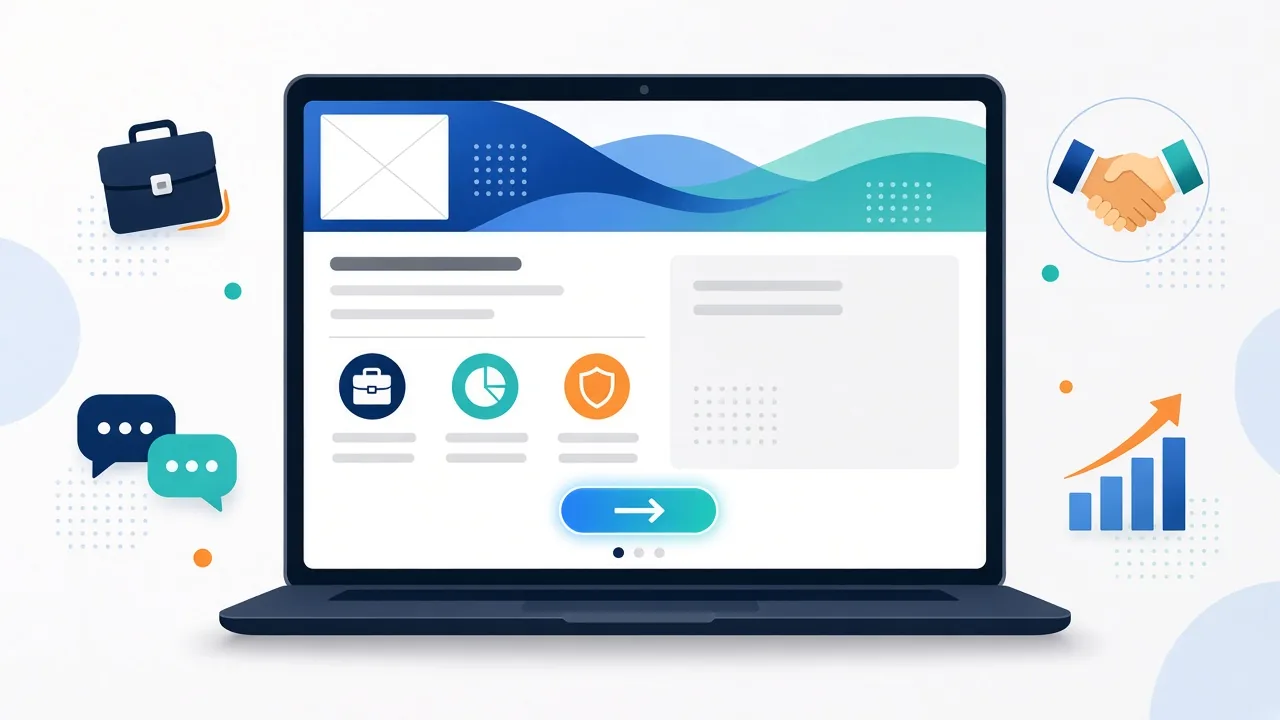
When a potential client hears your company name, one of the first places they check is LinkedIn. They want to know whether you are real, active and credible before they reply to an email or book a call. For business-to-business companies, a LinkedIn Company Page is often your second home page, and a half-finished one quietly costs you trust.
The good news: a strong Page doesn't need a big budget. It needs the right people in control, complete details, a clear next step for visitors and a posting rhythm you can keep. Here is a practical setup.
Step 1: Get control of the Page first
Before you touch the design, check who can manage the Page. LinkedIn Pages have three admin roles:
- Super admin: every permission, including adding and removing admins, editing Page information and deactivating the Page.
- Content admin: creates and manages posts and events, and can boost posts.
- Analyst: sees the Page's analytics only.
Our recommendations:
- Give super admin access to at least two people inside the business, so the Page isn't stranded when one person leaves.
- Give agencies, freelancers and junior staff content admin or analyst access, not super admin.
- Turn on two-step verification for every admin's personal LinkedIn account. The Page is only as safe as the logins that run it.
- Review the admin list every quarter and remove anyone who has moved on.
To add someone, a super admin goes to Settings, then Manage admins, in the super admin view. LinkedIn's help article on adding admins explains the conditions, including that the person must follow the Page.
Step 2: Complete every detail on the Page
An empty Page looks abandoned. LinkedIn's own guidance on editing your Page says Pages with information such as a logo, description and website URL are more discoverable and can potentially receive 30% more weekly views. Fill in:
- Tagline (up to 120 characters): say who you help and how, in plain words. For example, "Websites, SEO and cloud deployment for growing businesses" works better than a slogan nobody can decode.
- Overview (up to 2,000 characters): open with the problem you solve, then your services, the industries or regions you serve and how to start working with you. Write for a buyer, not for a search engine.
- Website, industry, company size and locations: complete and consistent with your website and Google Business Profile.
- Website link with tracking: add UTM parameters (for example utm_source=linkedin&utm_medium=social) so visits from your Page show up separately in Google Analytics.
Keep your keywords in the tagline and overview, not stuffed into the Page name. The name should be your real business name.
Step 3: Use images that work on every screen
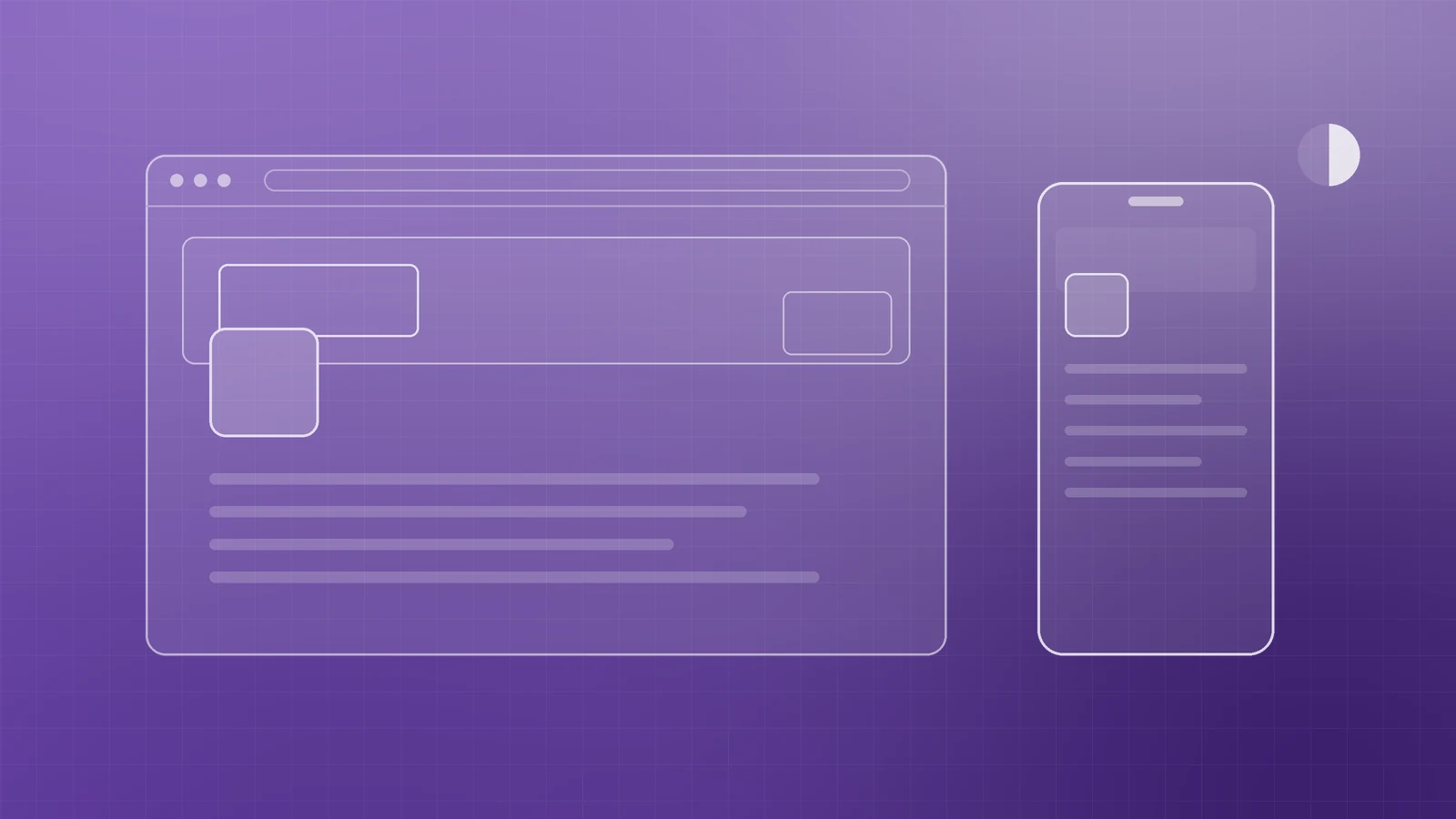
LinkedIn's image specifications for Pages recommend:
- Logo: 400 x 400 pixels (minimum 268 x 268).
- Cover image: 1512 x 256 pixels.
- PNG or JPEG files, up to 3 MB each.
Two details matter more than people expect. First, cover images can be trimmed on different screens, so LinkedIn advises keeping key details away from the edges, especially the lower-right corner, and using limited text. Second, your logo appears on both light and dark backgrounds, and a transparent logo is shown on white, so test it in both modes.
Use the cover to reinforce one message: what you do, or the outcome you deliver. A clean branded graphic beats a busy collage.
Step 4: Give visitors a clear next step
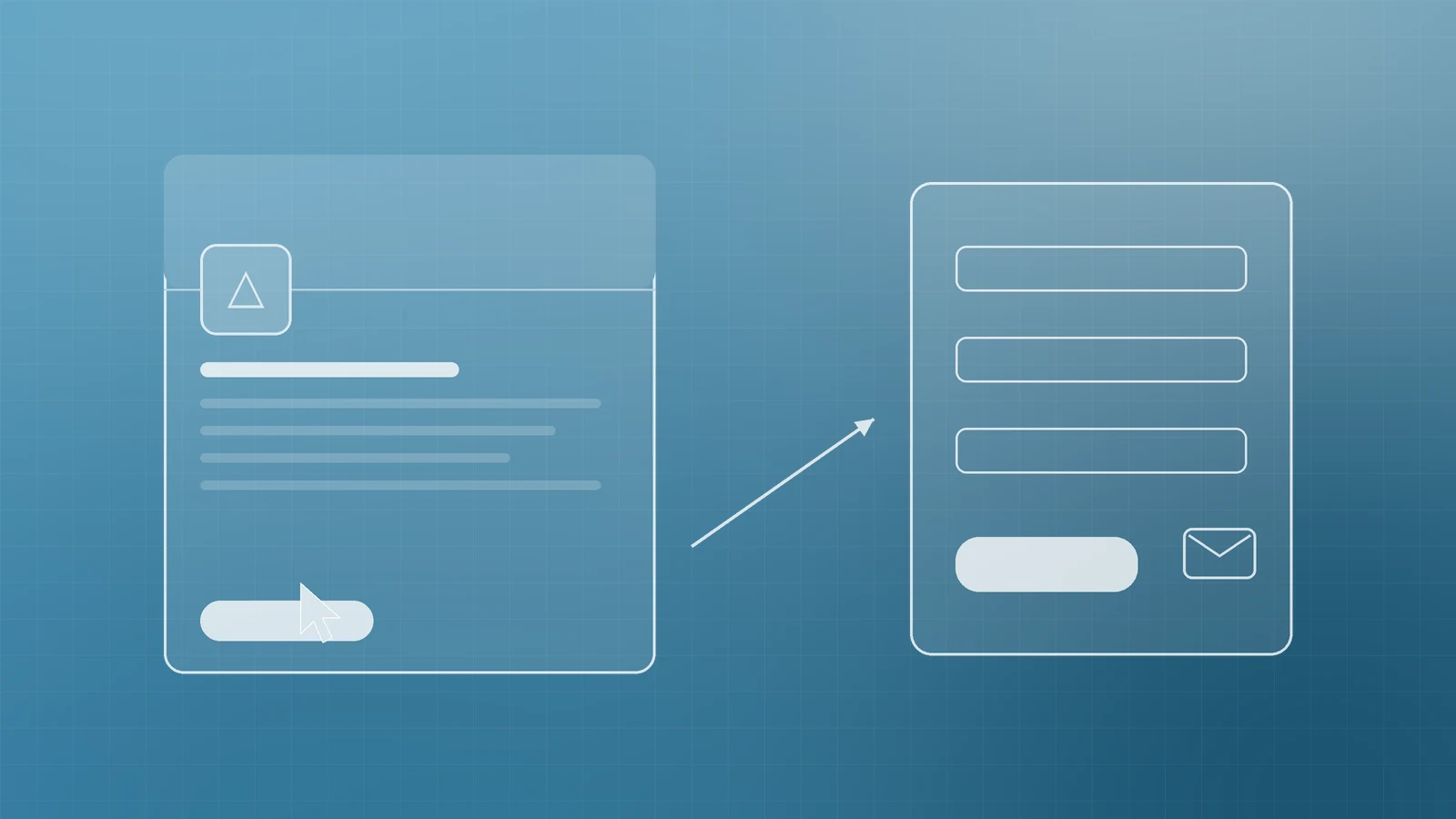
A Page that impresses but offers no next step wastes interest. LinkedIn lets super admins add a call-to-action button under Edit page, then Buttons, with a destination URL. LinkedIn's help article on the custom button notes that the full custom button is a Premium Company Page feature; without it, your call to action appears when members click the More button.
Point it at a page where a buyer can actually act: a contact form, a consultation booking page or a service page with a quote request. Don't send people to a generic home page and hope they find their way.
Step 5: Bring your team onto the Page
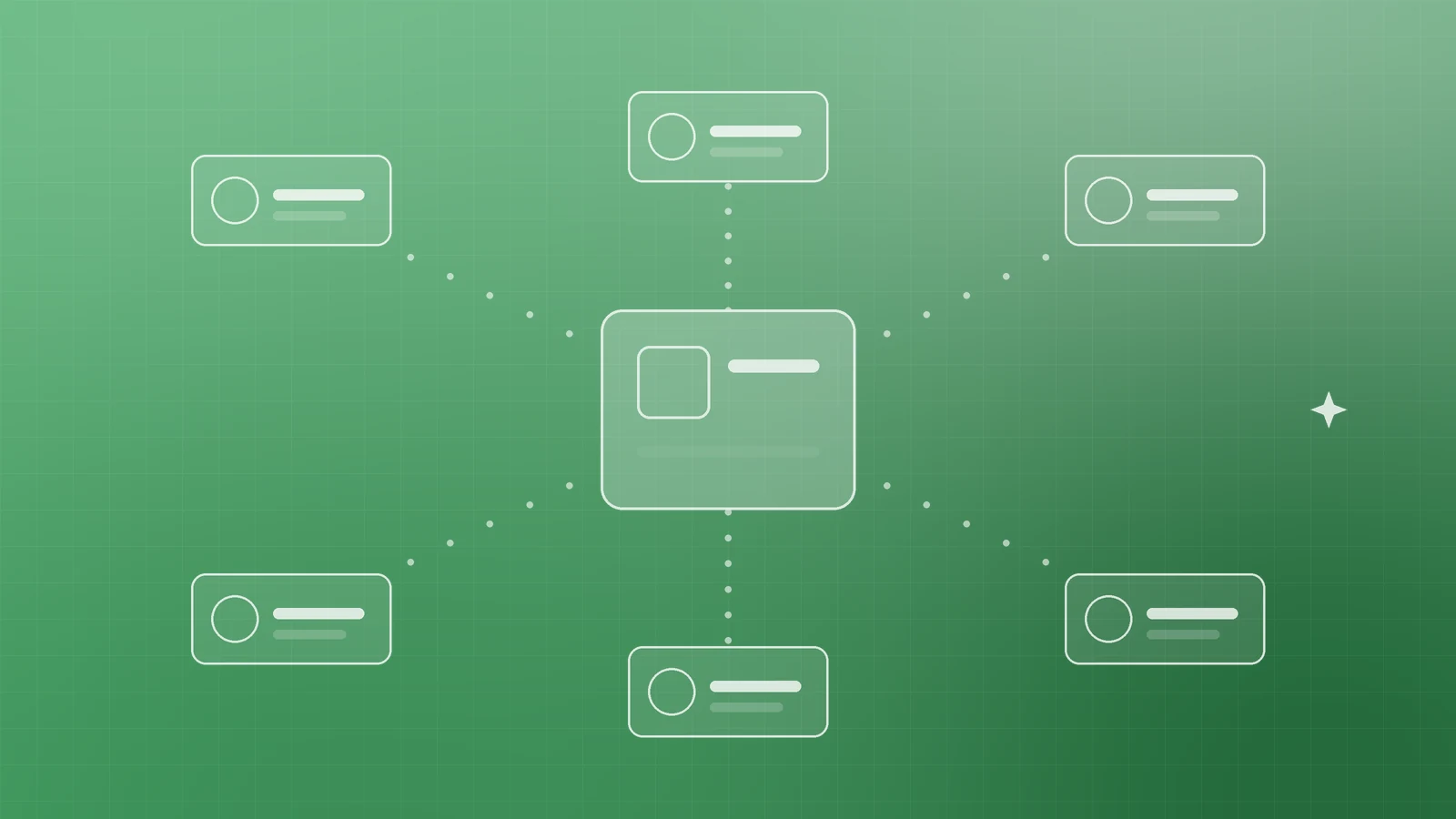
Your people are your Page's biggest source of credibility. Employees are linked to your Page when they add your organization in the Experience section of their own profile and select it from the list. Admins can't add them manually, and someone who types the company name by hand won't be connected.
Ask every team member to select the Page in their Experience section, follow it, and engage with posts when the topic is genuinely relevant to their network. Short, sincere comments from your team do more than a burst of empty reactions.
Step 6: Post on a rhythm you can keep

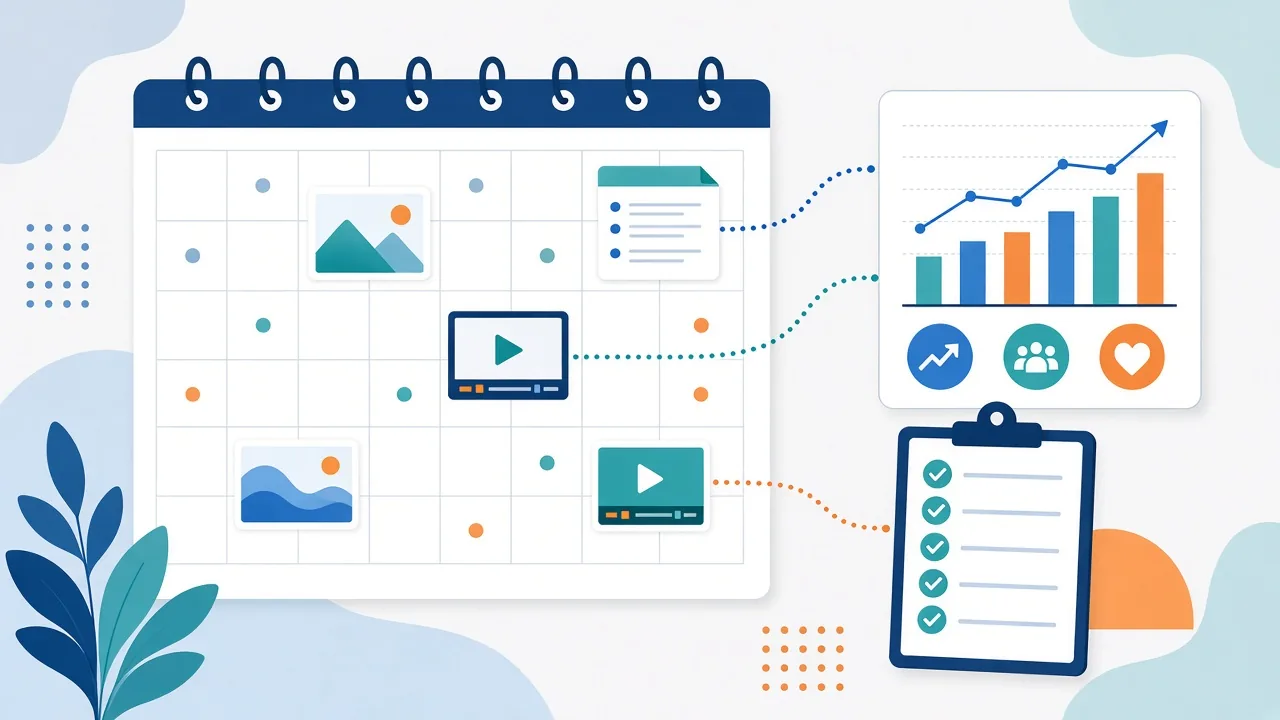
A Page with recent posts tells buyers you are active. Consistency matters more than volume, so choose a frequency your team can sustain for a full year, such as one or two posts a week, and plan a month ahead.
Content that works well for service businesses:
- A common client question, answered in a few clear lines.
- A practical tip or checklist from your area of expertise.
- A behind-the-scenes look at how you deliver work.
- A completed project, shared only with the client's permission.
- Company news: a new service, a team milestone, an event you are joining.
- Your latest blog post, with a short summary of why it matters.
Write the first line so it makes sense on its own, because it is what people see in the feed. Add a relevant image or short video, and reply to comments promptly.
Step 7: Measure what matters every month

LinkedIn Page analytics cover content, visitors, followers and competitors, and you can export each report as an XLS file. Content analytics show impressions, clicks, reactions, comments, reposts and engagement rate for each post, and visitor analytics include Page views, unique visitors and custom button clicks.
Once a month, spend 20 minutes on:
- Which posts drove the most clicks and comments, and what they have in common.
- Visitor and follower trends compared with the previous month.
- Custom button clicks, plus LinkedIn visits and enquiries in Google Analytics from your UTM-tagged links.
- One change to try next month.
Followers are nice, but enquiries are the goal. Judge the Page by the conversations it starts.
Your LinkedIn Page checklist
- At least two super admins from inside the business, with two-step verification on.
- Tagline, overview, website, industry, size and locations complete.
- Logo and cover image at the recommended sizes, tested on mobile and in dark mode.
- A call-to-action that leads to a real contact or booking page.
- Team members linked through their Experience section.
- A posting plan you can sustain, scheduled a month ahead.
- A monthly analytics review with one improvement to test.
Make LinkedIn work as hard as your website
A well-run LinkedIn Company Page builds trust before the first conversation and gives buyers an easy way to reach you. If you'd like help setting up your Page, planning content or connecting LinkedIn to your website and analytics, the Inferas team can help. Get in touch at https://inferas.in.