How to Choose the Right CMS for Your Business Website
Compare WordPress, Shopify, Webflow, Wix, headless and static sites by editing, SEO, security, cost and lock-in, with a practical CMS checklist.
Your content management system (CMS) shapes who can update your website, how fast it loads, how much SEO control you have, what it costs and how hard it is to leave. Picking one because the first template looked nice is how businesses end up rebuilding two years later.
The decision becomes straightforward once you match the platform to how your business actually works.
Know the main types of CMS
Most small and growing businesses choose from five broad categories:
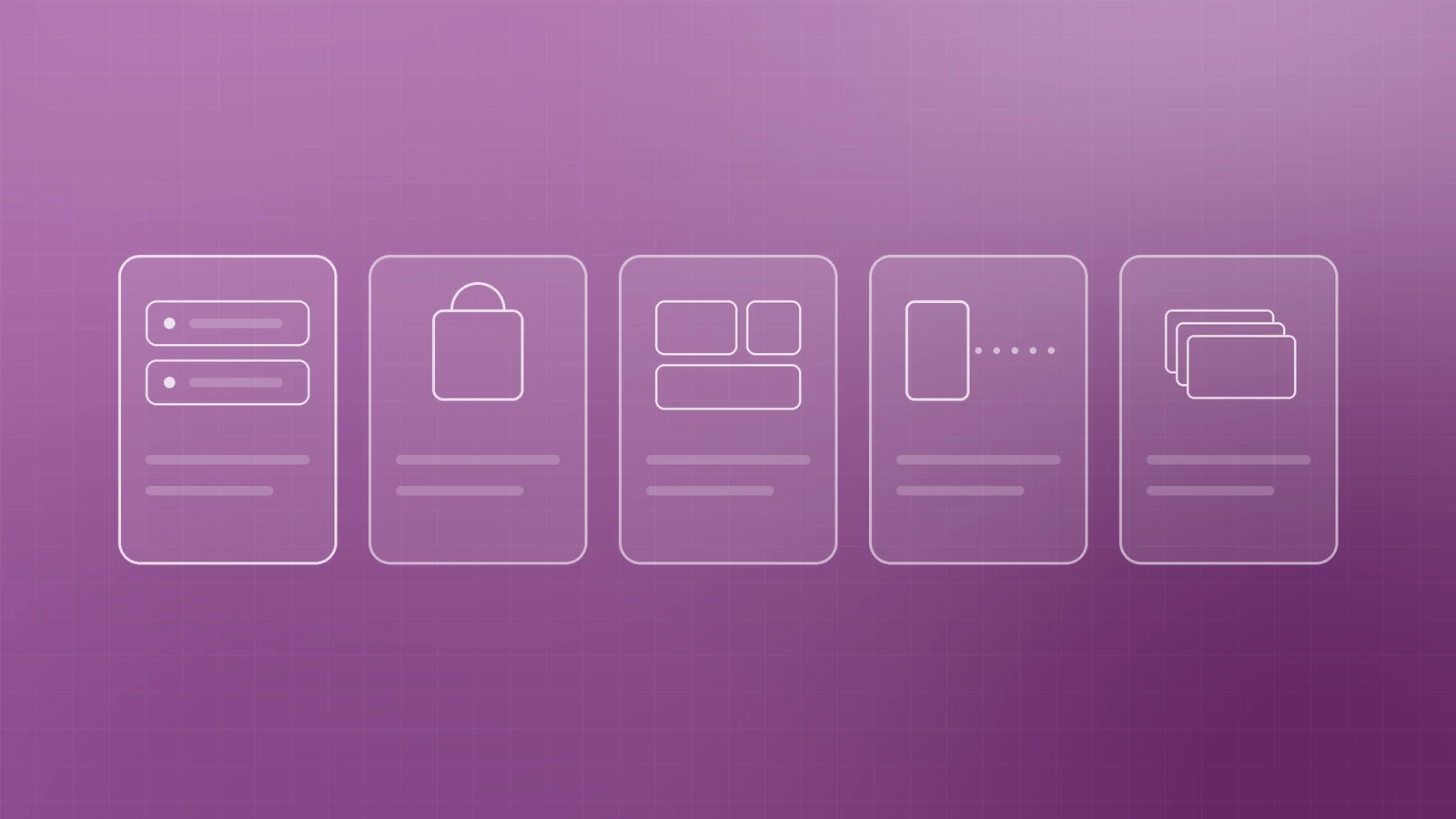
- Open-source, self-hosted CMS (WordPress, Drupal, Joomla). You run it on hosting you control and extend it with themes and plugins. WordPress is the most widely used CMS by far: W3Techs reported today that it powers 39.6% of all websites, a 58.3% share of sites that use a CMS it monitors. WordPress is licensed under the GPLv2 or later, so you are free to run, study, change and move it.
- Hosted e-commerce platforms (Shopify and similar). The provider runs the hosting, security and checkout, and you manage products, orders and content through a dashboard.
- Visual website builders (Wix, Squarespace, Webflow). Drag-and-drop or design-led editing, with hosting included. Fast to launch, within the provider's limits.
- Headless CMS. Content lives in a back end and is delivered through an API to a separately built front end. Very flexible when content feeds a website, an app and other channels, but it needs developers.
- Static sites. Pages are generated as plain HTML files, often from a static site generator, and served from a CDN. Fast and low-maintenance, but edits usually go through a developer.
Start with who will edit the site
The best CMS is the one your team will actually use. If marketing staff publish weekly, they need a friendly editor and sensible permissions. WordPress, for example, ships with predefined roles such as Administrator, Editor, Author and Contributor, so a Contributor can write and manage their own posts but cannot publish them. If the site changes a few times a year, a simpler builder or even a static site may serve you better.
Match the platform to your business model
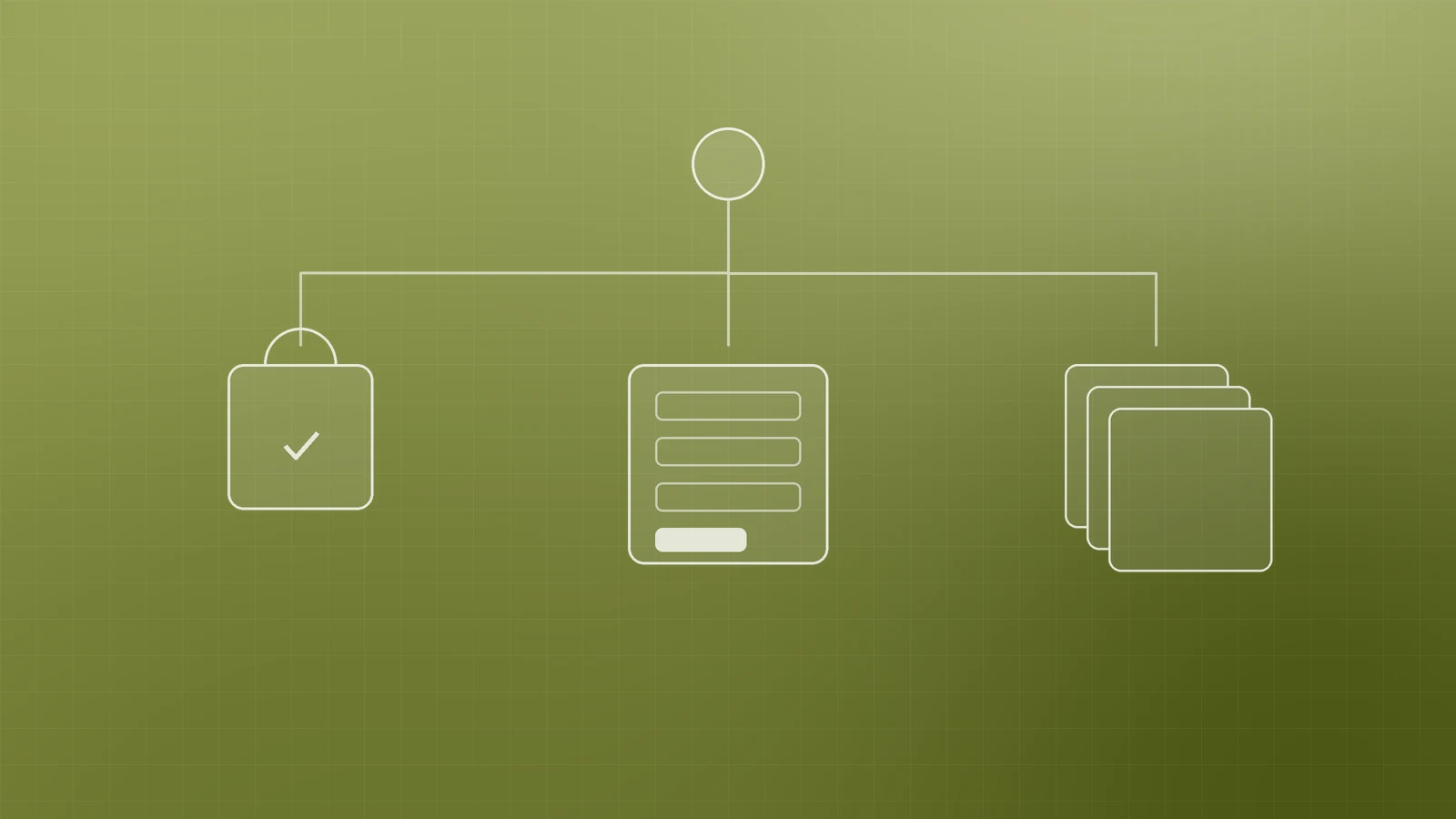
- Selling products online: A dedicated e-commerce platform removes a lot of work. Shopify states that it is certified Level 1 PCI DSS compliant and that this extends by default to all stores on its platform, which matters when you take card payments. WordPress with an e-commerce plugin suits businesses that want full control and have someone to maintain it.
- Generating leads for services: Speed, clear calls to action, good forms and an easy blog matter more than advanced features.
- Publishing heavily or across channels: A mature CMS or headless setup gives you structured content, workflows and API access.
Check SEO controls and performance
Every serious platform lets you set page titles and meta descriptions. Look further: can you edit URL slugs, set up 301 redirects, add structured data, edit robots and canonical settings, and generate an XML sitemap?
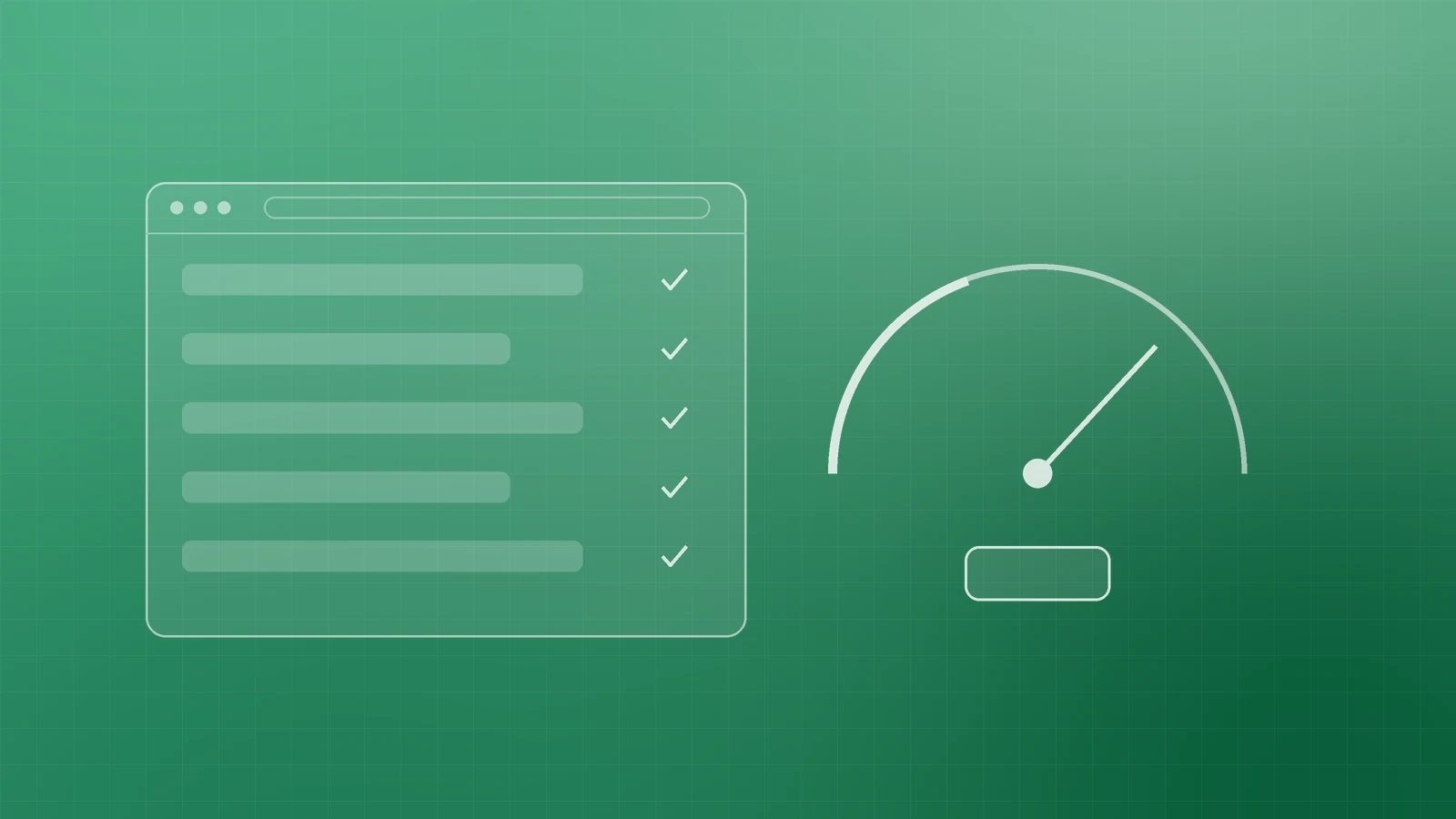
Performance depends on the platform, the theme and how many add-ons you install. A heavy theme with dozens of plugins can make any CMS slow, so test a real page on a mid-range phone before you commit.
Be honest about security and maintenance
With a hosted platform, the provider handles most of the infrastructure and software updates. With a self-hosted CMS, that responsibility is yours or your agency's.
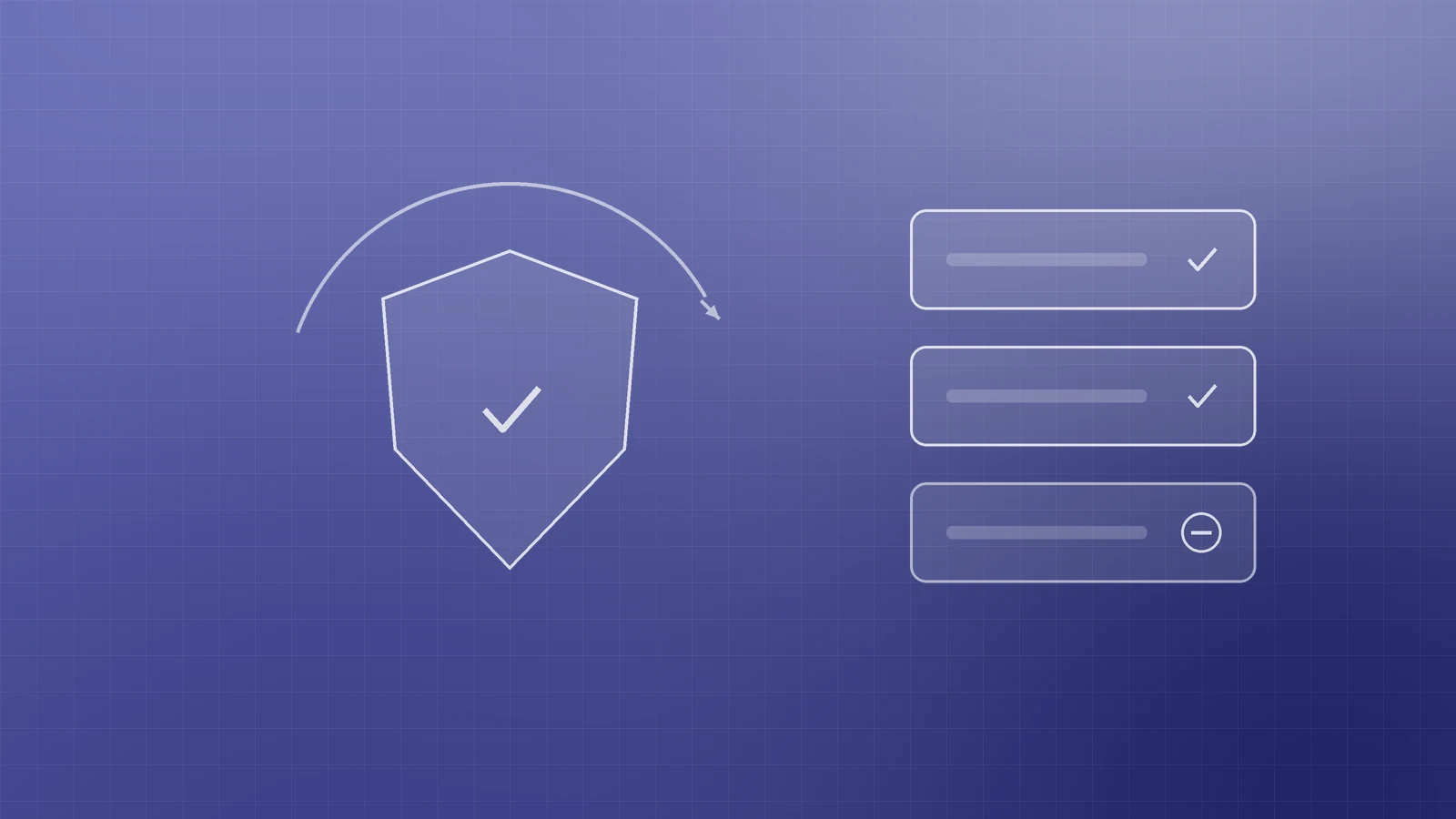
The official Hardening WordPress guide is clear that older versions of WordPress are not maintained with security updates, that plugins should always be updated and unused ones deleted, and that you should get themes and plugins only from trusted sources. It also recommends regular backups and two-step authentication. Someone has to own this every month. If nobody will, choose a platform that does it for you.
Map integrations and total cost
List the tools your website must work with, such as your CRM, email platform, booking system, payments and analytics, and check each has a supported integration or API.

Then estimate the three-year cost, not just the monthly plan:
- Platform or hosting fees
- Paid themes, plugins or apps, many of which are subscriptions
- Transaction or payment fees for e-commerce
- Developer time for setup, changes and maintenance
- The cost of a future migration
A "free" open-source CMS still needs hosting, updates and support, and a cheap plan can grow expensive once apps are added.
Plan your exit before you sign up
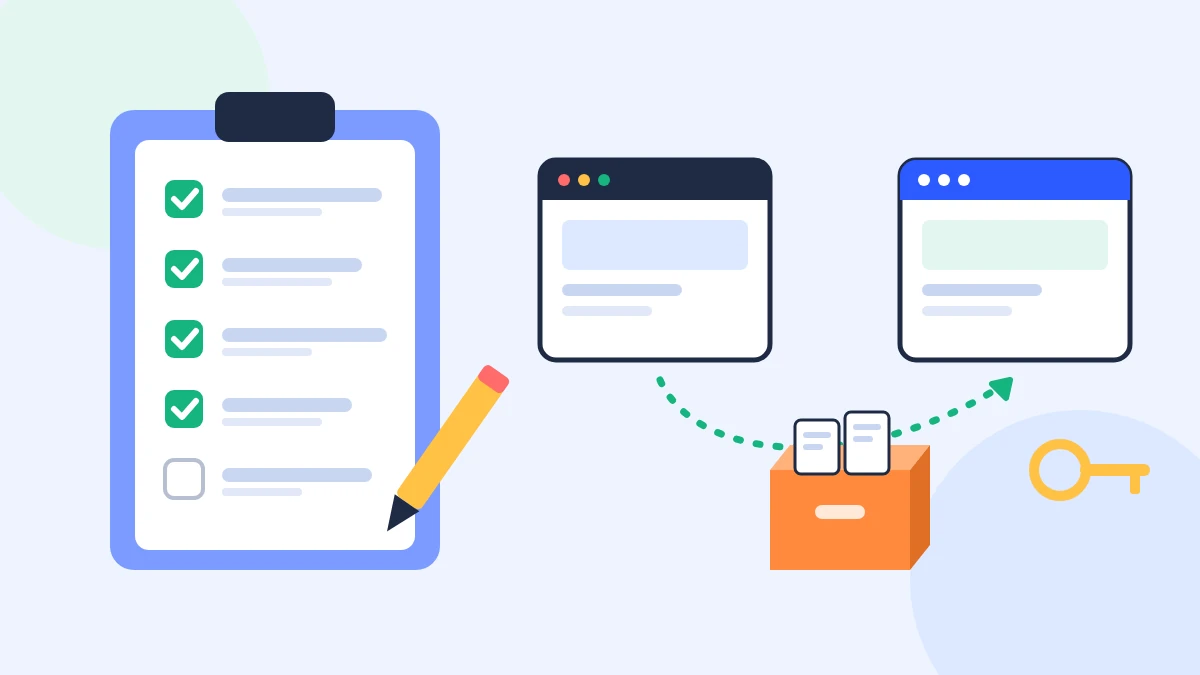
Portability is easy to ignore on launch day and painful to discover later. Check what you can export:
- WordPress's export tool creates an XML (WXR) file containing your posts, pages, custom post types, comments, custom fields, categories, tags, custom taxonomies and users, which can be imported into another WordPress site.
- Shopify lets you export products to a CSV file, but notes that product images are not included in the CSV.
- Webflow's code export gives you HTML, CSS, JavaScript and assets on paid Workspace plans, but CMS and e-commerce content are not included in the exported code. Collections can be exported separately as CSV files.
- Wix explains that a Wix site needs to be hosted and operated on Wix's servers, although you can connect a domain you manage elsewhere.
Lock-in is not automatically a deal-breaker; many businesses happily trade portability for convenience. Make that trade deliberately, and keep your domain registered in your own name.
A quick CMS decision checklist
- Who will edit the site, and how often?
- Do you need e-commerce now or in the next two years?
- Can you control titles, slugs, redirects, structured data and sitemaps?
- Does a real page load quickly on a mobile phone?
- Who will handle updates, backups and security?
- Do your essential tools integrate properly?
- What is the realistic three-year cost?
- What can you export if you ever leave?
Choose for the next three years, not the next three weeks

The right CMS fits your team, your business model and your growth plans without trapping your content. If you'd like a second opinion, help planning a migration, or a website built on the right platform, talk to the team at Inferas.