Website Accessibility for Small Businesses: A Practical Guide
Make your site usable by every customer: fix contrast, alt text, form labels, headings and keyboard access with simple WCAG-based checks.
Every website is built for customers, but not every website lets every customer use it. If someone can't read your low-contrast text, can't tell what a button does with a screen reader, or can't fill in your contact form without a mouse, they don't complain. They leave, and usually to a competitor.
Accessibility means designing and building your site so people with disabilities can perceive, understand, navigate and interact with it. That's a big audience. The World Health Organization estimates that 1.3 billion people, about 1 in 6 of us, experience significant disability (WHO: Disability fact sheet). Add older visitors, people on small screens, and anyone using a phone in bright sunlight, and accessible design starts to look like simply good design.
The good news is that most problems are common, well understood and fixable. This guide shows you where to start.
Why accessibility is a business decision
The W3C, the body behind web standards, frames the business case around a few clear benefits: it extends your market reach, strengthens your brand, drives innovation and reduces legal risk. It also notes that accessibility often improves the online experience for all users (W3C: The Business Case for Digital Accessibility).
Legal expectations are growing too. In the United States, the Department of Justice explains that the Americans with Disabilities Act applies to businesses open to the public, and that those businesses must make sure the goods and services they provide online are accessible to people with disabilities (ADA.gov: Guidance on Web Accessibility and the ADA). In the EU, the European Accessibility Act sets accessibility requirements for certain products and services, including e-commerce and banking (European Commission: European Accessibility Act). Rules vary by country, so check what applies where you sell, but the direction is clear everywhere.
There's an SEO overlap as well. Descriptive page titles, a clean heading structure and meaningful image descriptions help search engines understand your pages in the same way they help assistive technology.
Know the standard: WCAG in plain terms
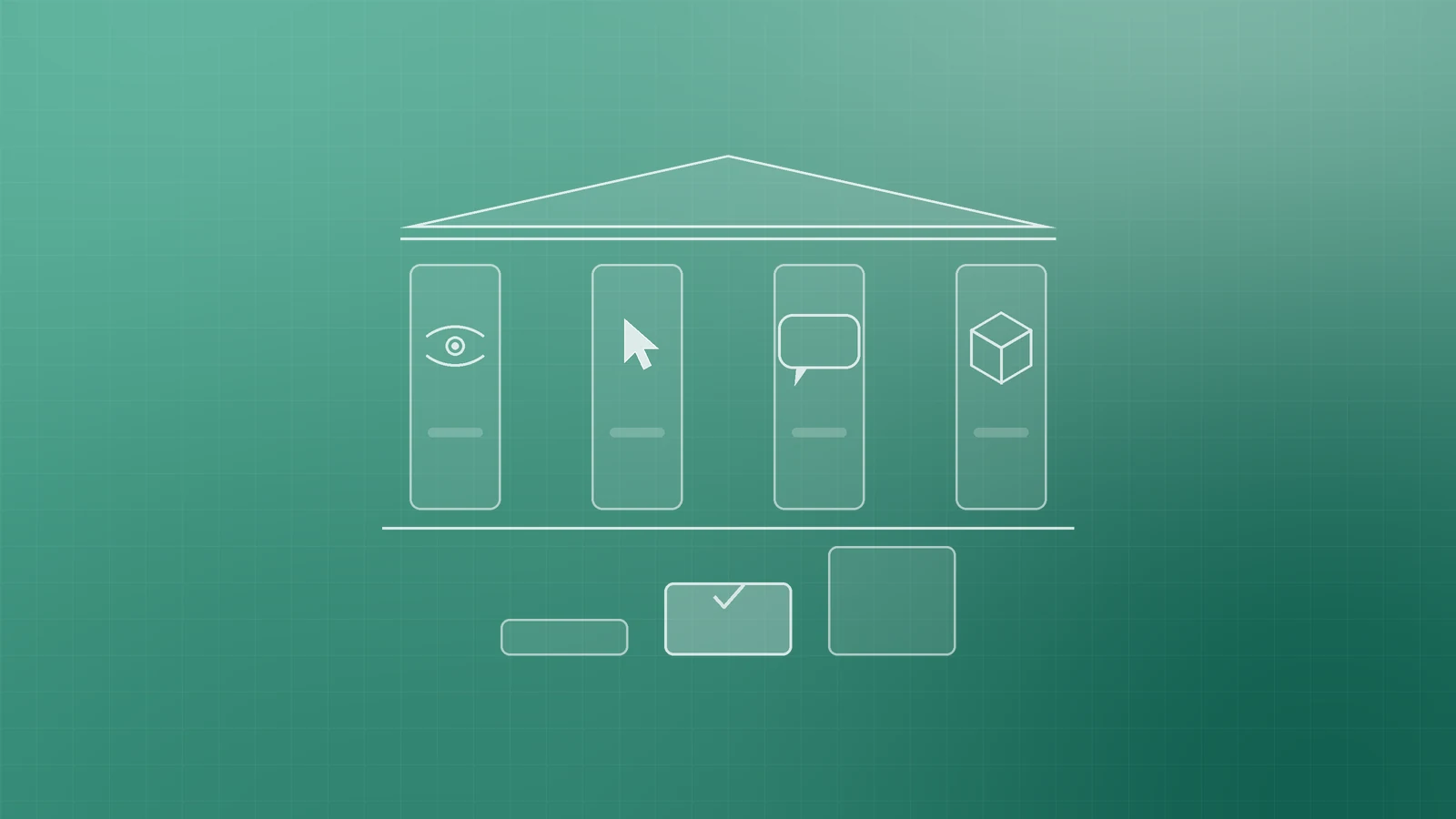
The Web Content Accessibility Guidelines (WCAG) are the international standard most laws and policies point to. WCAG 2.2 has 13 guidelines organised under four principles: content should be perceivable, operable, understandable and robust. Each guideline has testable success criteria at three levels, A, AA and AAA (W3C: WCAG 2 Overview).
For most businesses, Level AA is the practical target. You don't need to memorise the standard. The W3C's How to Meet WCAG quick reference lets you filter the criteria and see techniques for each one, which makes it a useful companion for your developer or agency.
The six problems found on most websites
WebAIM's 2026 analysis of the top one million home pages found detectable WCAG failures on 95.9% of them, and 96% of all detected errors fell into just six categories (WebAIM: The WebAIM Million 2026). Those categories make a perfect starting checklist:
- Low contrast text, found on 83.9% of home pages. WCAG AA asks for a contrast ratio of at least 4.5:1 for normal text and 3:1 for large text (W3C: Understanding Contrast (Minimum)). Pale grey text on white is the usual culprit.
- Missing alternative text for images, on 53.1% of pages. Every meaningful image needs a short description of its purpose. Purely decorative images should have empty alt text so screen readers skip them.
- Missing form input labels, on 51% of pages. Placeholder text that disappears when you type isn't a label. Each field needs a visible, connected label.
- Empty links, on 46.3% of pages. Icon-only links, such as a social icon or a linked logo, need an accessible name that says where they go.
- Empty buttons, on 30.6% of pages. A magnifying glass or a hamburger menu icon needs a text name like "Search" or "Menu".
- Missing document language, on 13.5% of pages. Declaring the page language helps screen readers pronounce words correctly.
If you fix only these six across your key templates, you remove most of the barriers an automated tool can detect.
Run your own 15-minute check
You don't need special software to get a first read. The W3C's Easy Checks walk you through simple tests you can do on any page. Start with your home page, a key service or product page, and your contact or checkout page.
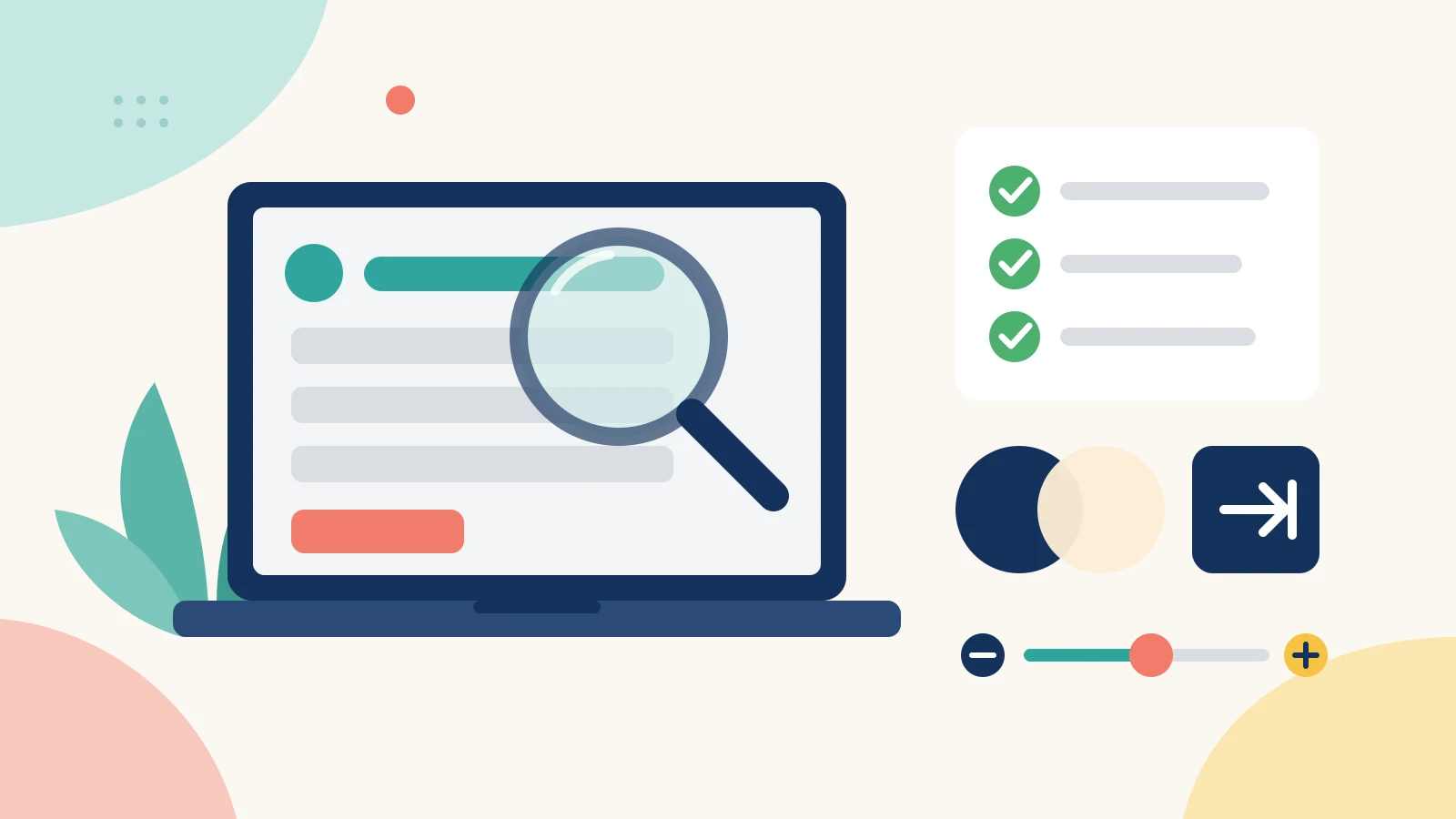
- Unplug the mouse. Press Tab to move through the page. Can you reach every link, button and form field, and can you always see where the focus is?
- Zoom to 200%. Does the text stay readable, and does the layout still work without content overlapping or disappearing?
- Look at the headings. Do they form a logical outline, like a table of contents, rather than being chosen for their font size?
- Read the page titles in your browser tabs. Does each one say clearly what the page is?
- Check your forms. Is every field labelled, are required fields marked, and do error messages explain how to fix the problem?
- Play your videos. Do they have captions?
Then run a free automated checker such as WebAIM's WAVE to catch issues like missing alt text and contrast failures. Keep in mind that automated tools can't detect every problem, so a clean report isn't proof that a page is accessible.
Build accessibility into how you work
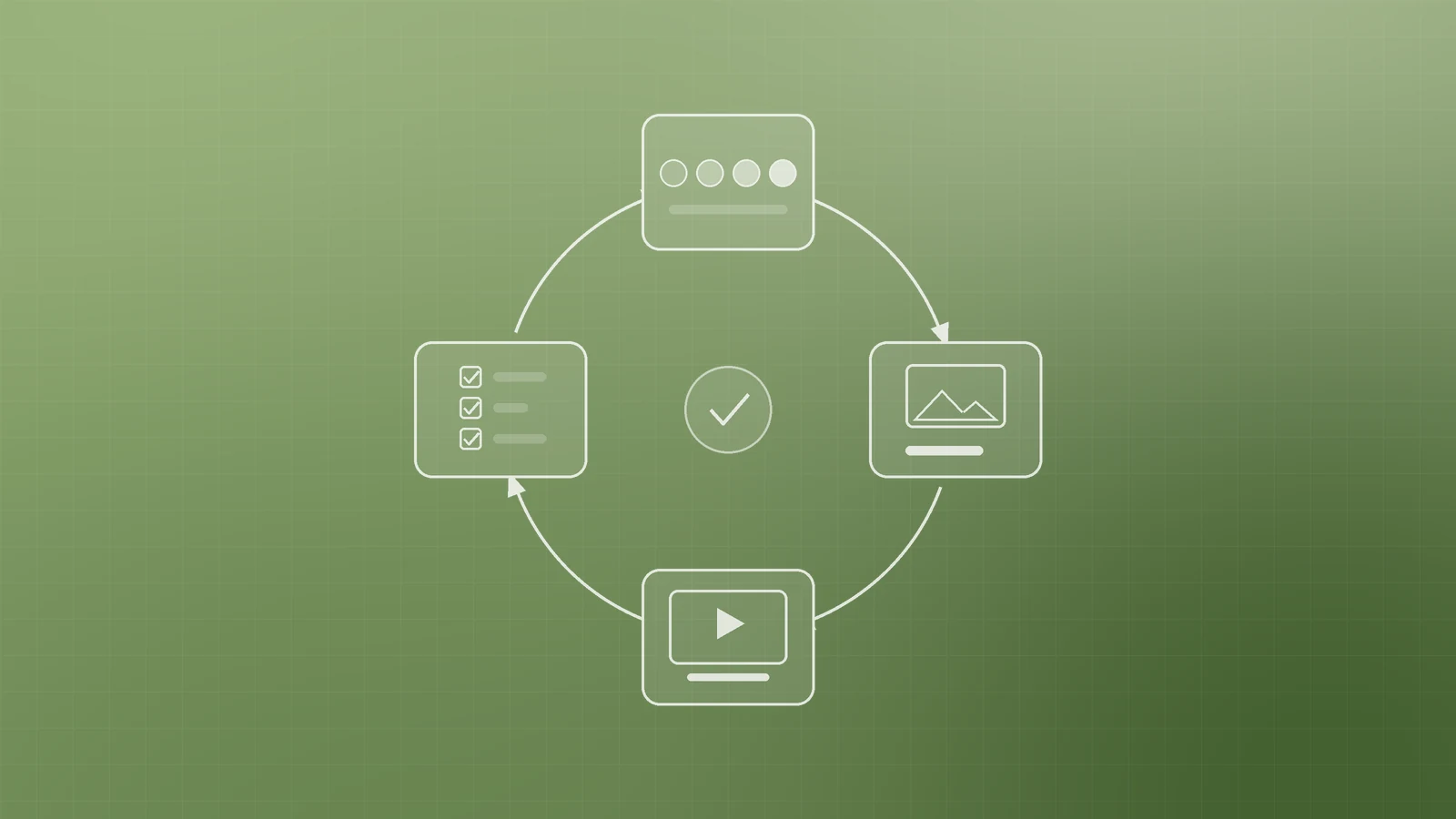
One-off fixes fade as new pages and campaigns go live. A few habits keep a site accessible over time:
- Choose accessible building blocks. When you pick a theme, page builder or plugin, check that it supports keyboard navigation and proper labels before you commit.
- Set brand colours that pass contrast. Agree on text and button colour pairs once, and every new page inherits them.
- Write alt text as you upload. Make it part of your publishing checklist, alongside the SEO title and meta description.
- Caption your videos. Most video platforms can auto-generate captions; review and correct them before publishing.
- Test before launch. Add the keyboard and zoom checks to your pre-launch routine for every new page or redesign.
- Publish an accessibility statement. Tell visitors what you support and how to contact you if they hit a barrier, then respond quickly when they do.
Accessibility isn't a project you finish. It's a standard you keep, in the same way you keep your site secure and fast.
Make your website work for every customer
An accessible website reaches more people, earns more trust and is easier for search engines to understand. Starting with the six most common problems and a short manual check puts you ahead of most of the web.
If you'd like a clear accessibility review of your site, or help building accessibility into your next redesign, the Inferas team can help. Get in touch at https://inferas.in and let's make your website work for everyone who visits it.