Image Optimization for Faster Websites: A Practical Guide
Make your website faster with optimized images: modern formats, right sizing, lazy loading, layout-shift fixes and image SEO best practices.

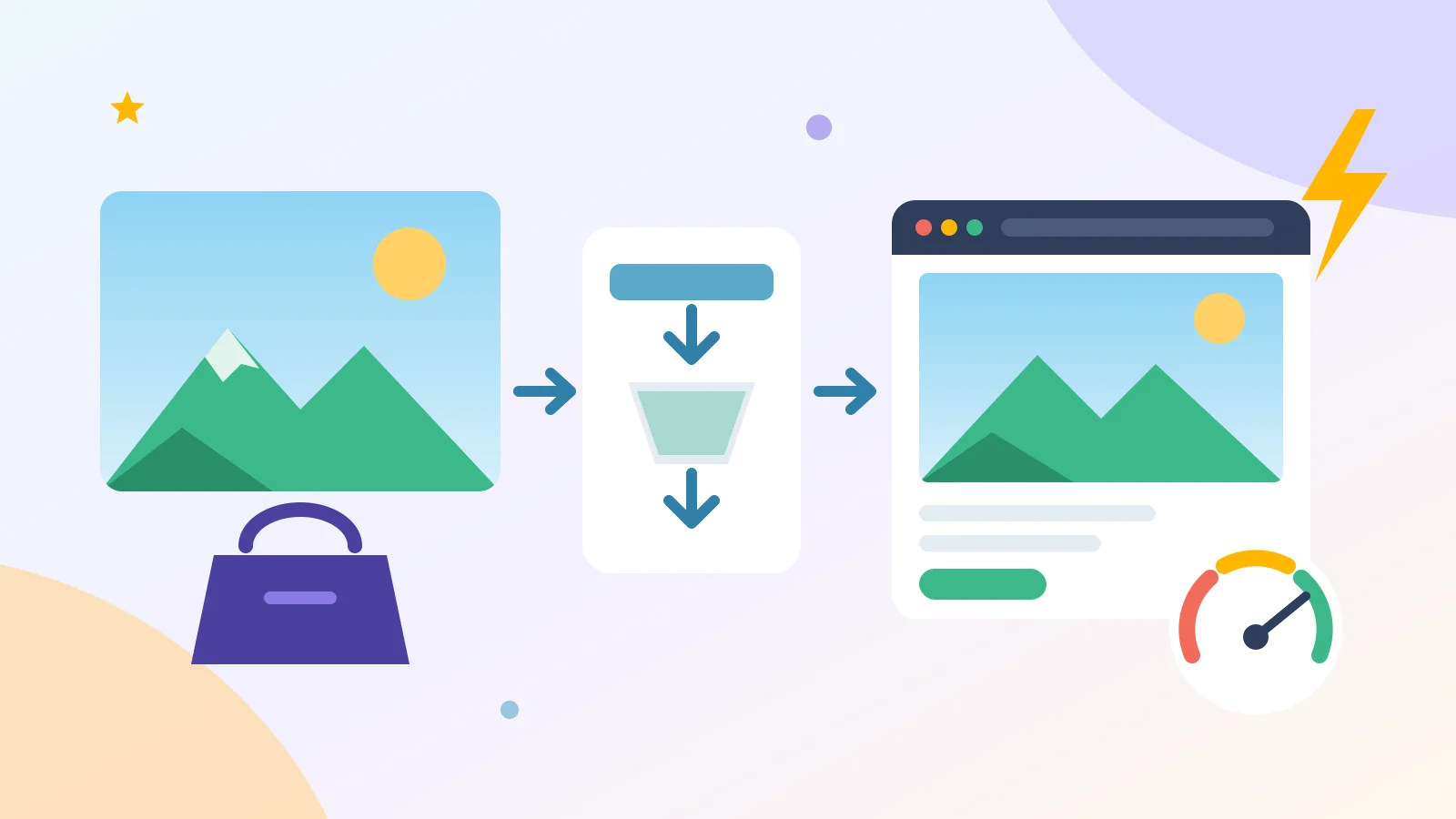
Photos and graphics sell. They show your products, your team's work and the results customers can expect. But on many business websites, images are also the heaviest thing a visitor has to download, and heavy pages feel slow, especially on a phone.
The good news is that image optimization is one of the most practical speed wins available. You don't need a redesign. You need the right format, the right size, sensible loading rules and a few lines of well-written HTML. Here is how to get it right.
Why images decide how fast your site feels

Google's image SEO best practices put it plainly: images are often the largest contributor to overall page size, which can make pages slow and expensive to load. web.dev's guide to lazy loading cites HTTP Archive data showing that images are the most-requested asset type for most websites and usually use more bandwidth than any other resource.
Speed is also measured. Google's Core Web Vitals track loading, responsiveness and visual stability, and Google says good scores align with what its core ranking systems seek to reward. Two of those metrics are directly shaped by images:
- Largest Contentful Paint (LCP) measures how quickly the main content appears. Google recommends 2.5 seconds or less, and web.dev's LCP guide confirms that images, including CSS background images, can be the LCP element.
- Cumulative Layout Shift (CLS) measures how much the page jumps around while loading. Google's target is under 0.1, and images without reserved space are a classic cause of those jumps.
Choose the right format for each image

Not every image should be a JPEG or a PNG. MDN's image format guide recommends preferring WebP or AVIF for raster images because they generally compress better than PNG, JPEG and GIF.
- WebP. Google's WebP documentation states that lossless WebP images are 26% smaller than PNGs, and lossy WebP images are 25-34% smaller than comparable JPEGs at equivalent quality. It is supported natively in Chrome, Safari, Firefox, Edge and Opera.
- AVIF. MDN describes AVIF as offering much better compression than PNG or JPEG, and notes it is supported in Chrome, Edge, Firefox, Opera and Safari. It doesn't support progressive rendering, so test it on your largest images.
- SVG. For logos, icons, diagrams and simple illustrations, MDN recommends SVG because it stays sharp at any size.
- JPEG and PNG as fallbacks. JPEG suits photographs; PNG suits screenshots and graphics that need transparency.
If you serve newer formats, use the picture element with a JPEG or PNG fallback inside a standard img tag. Google Search supports BMP, GIF, JPEG, PNG, WebP, SVG and AVIF, and recommends that the file extension matches the actual file type.
Resize before you upload
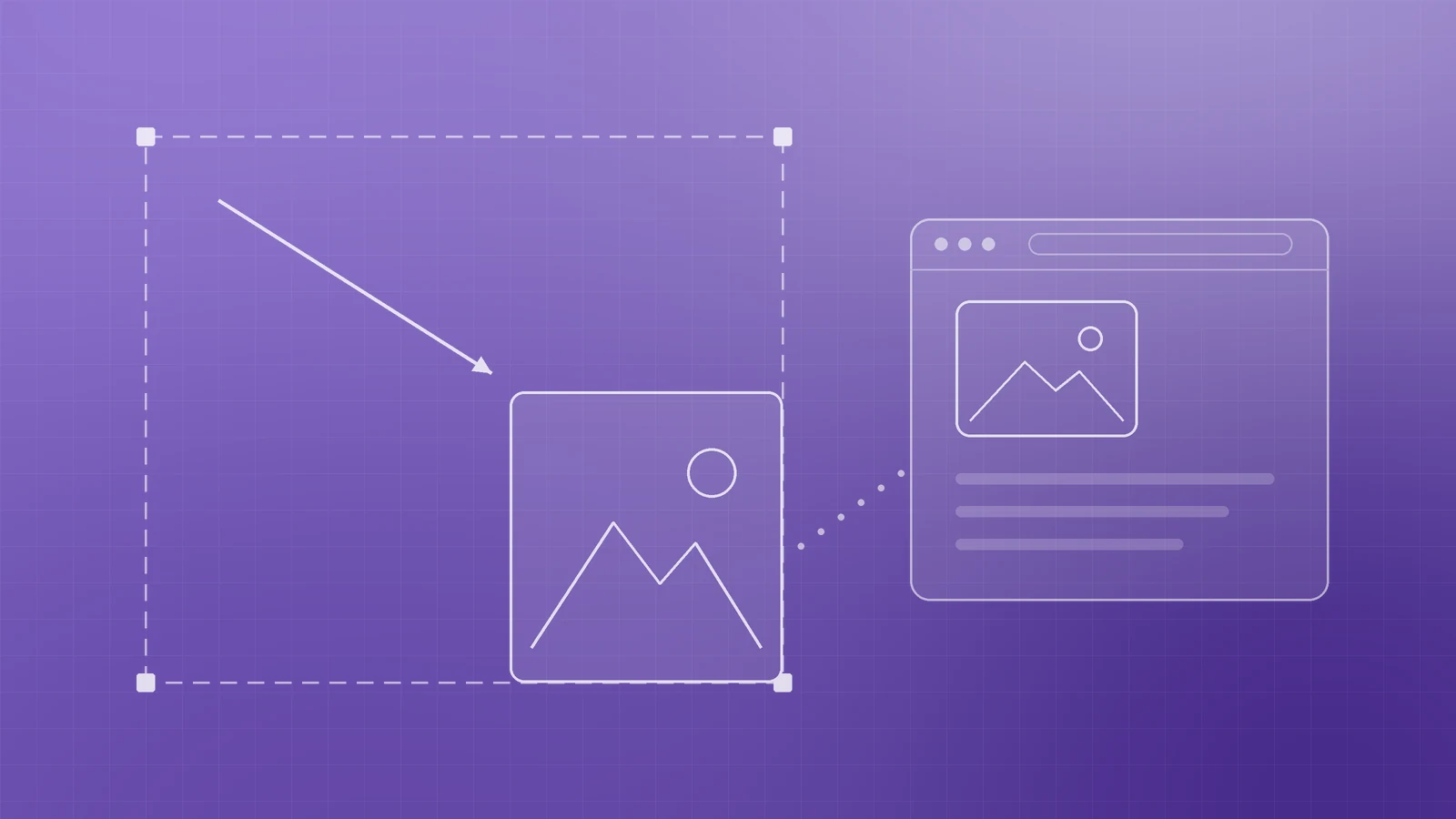
One of the most common problems is a photo straight from a camera or phone, thousands of pixels wide, displayed in a box a few hundred pixels across. The browser still downloads every pixel.
- Export images close to the largest size they will actually be shown at.
- Compress them. For photos, lossy compression is usually invisible at sensible settings; for screenshots and line art, MDN advises lossless compression because blurring around text and sharp edges is very visible.
- Strip out what you don't need. A product thumbnail doesn't need to be a print-quality file.
Serve the right size to each screen
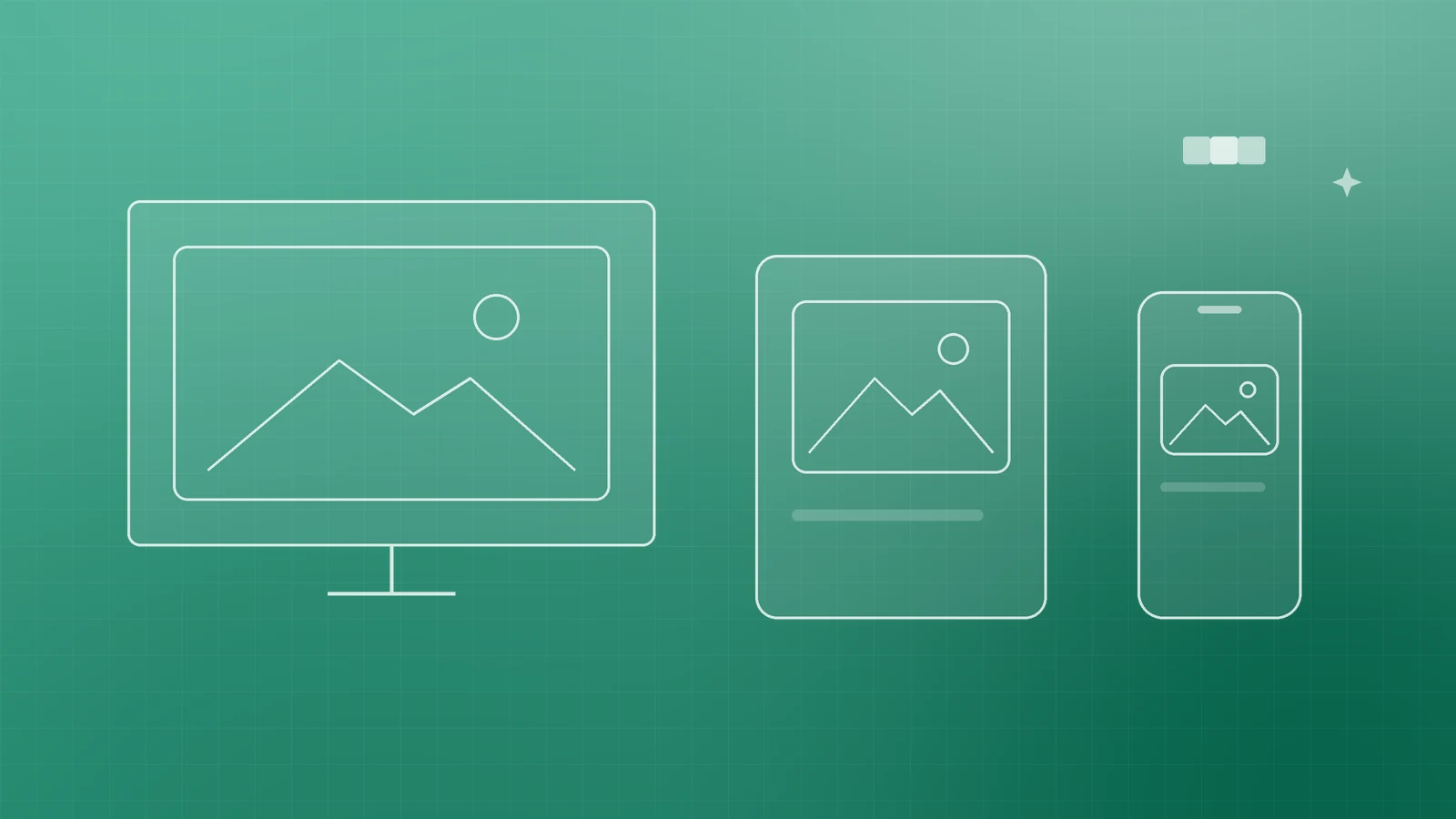
A phone and a large desktop monitor shouldn't receive the same file. Responsive images let the browser choose. With the srcset and sizes attributes, you list several widths of the same image and the browser downloads the one that fits the visitor's screen.
Google's image guidelines recommend always including a fallback URL in the src attribute, because some browsers and crawlers don't understand srcset. Most modern CMS platforms and image CDNs can generate these sizes automatically, so check what yours offers before doing it by hand.
Load images at the right moment

Not every image needs to load immediately. Modern browsers support lazy loading with a single attribute: loading="lazy". According to web.dev, this defers off-screen images until the visitor scrolls near them, with no JavaScript library required.
The catch is just as important: don't lazy-load what people see first. web.dev advises using the browser's default eager loading for images visible in the first viewport, especially the LCP image, because lazy-loading them makes them load more slowly. For your hero image, the same guide recommends going further and adding fetchpriority="high" so the browser fetches it early.
A simple rule works well:
- Hero or banner image: no lazy loading, add fetchpriority="high".
- Images further down the page: loading="lazy".
Stop layout shifts with width and height

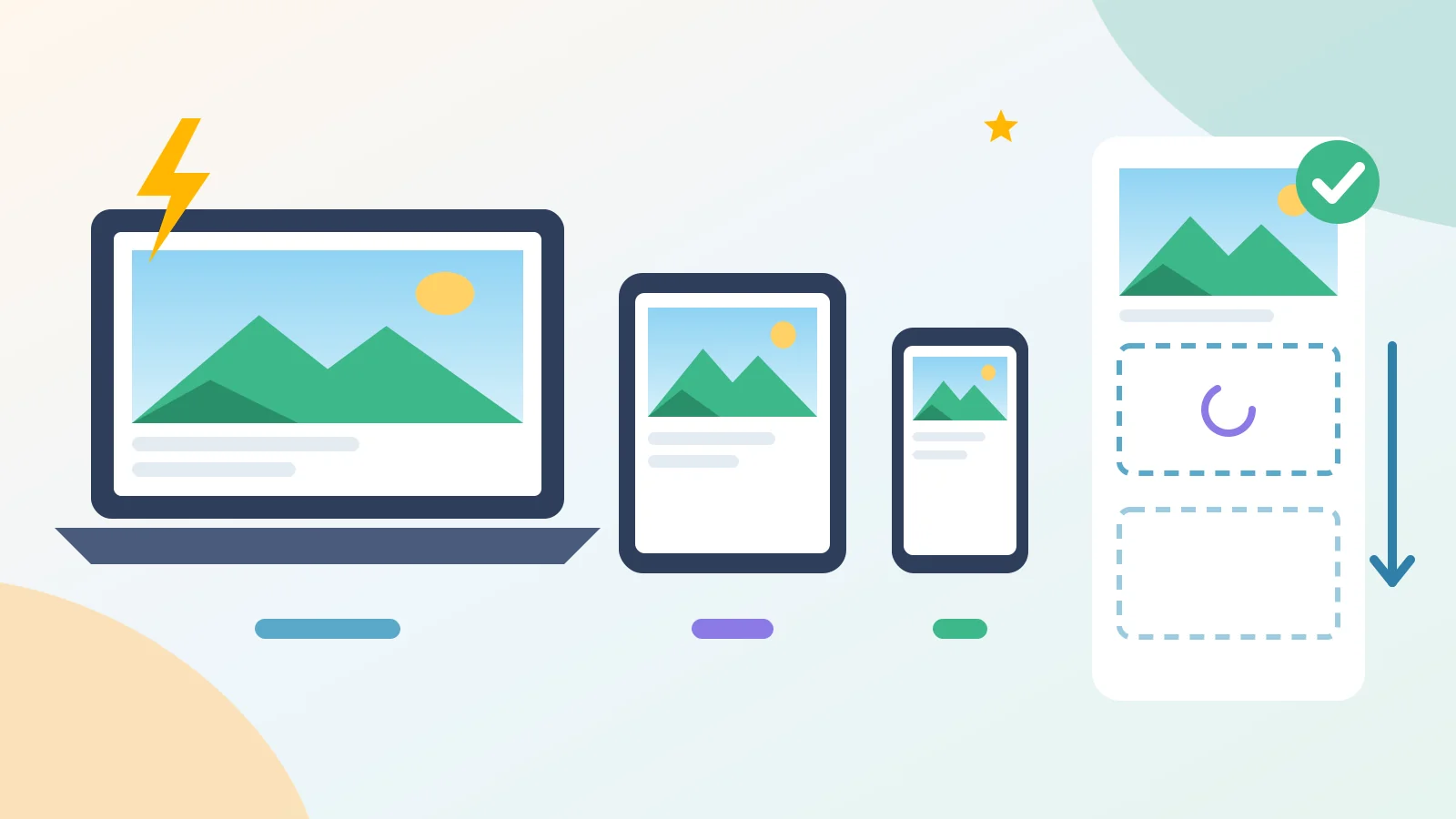
Ever started reading a page, only for the text to jump as an image loads above it? That's layout shift. web.dev recommends adding width and height attributes to every img tag so the browser can reserve the right space before the image arrives. This matters even more with lazy loading: web.dev notes that images without dimensions default to 0x0 pixels, which can cause unnecessary loading as well as shifts.
Don't forget image SEO

Faster images help visitors. Well-described images also help search engines understand them. From Google's image SEO best practices:
- Use standard HTML img elements. Google doesn't index CSS background images.
- Write useful alt text. Google calls alt text the most important attribute for image metadata, and it also makes your site accessible to people using screen readers. Describe the image in context, and avoid keyword stuffing.
- Use short, descriptive filenames. Google's example: my-new-black-kitten.jpg is better than IMG00023.JPG.
- Place images near relevant text, so the surrounding content explains them.
- Reuse the same URL for an image that appears on several pages, so Google can cache it.
Measure, fix, repeat

Start with data rather than guesswork. Run your key pages through PageSpeed Insights to see your LCP and CLS and which images are flagged. Check the Core Web Vitals report in Google Search Console for real-user data across your site. Then fix your most-visited pages first: the homepage, top service or product pages and your main landing pages.
Your image optimization checklist

- Photos in WebP or AVIF, with a JPEG or PNG fallback
- Logos, icons and diagrams in SVG
- Images exported near their display size and compressed
- srcset and sizes for images shown at different widths
- Hero image loaded eagerly, with fetchpriority="high"
- loading="lazy" on images below the first screen
- width and height on every img tag
- Descriptive filenames and useful alt text
- LCP and CLS checked in PageSpeed Insights and Search Console
Faster pages, better first impressions

Image optimization is quick to start and keeps paying off, because every new page and product you publish benefits from the same habits. If you'd like help auditing your site's speed, setting up an image workflow in your CMS or improving Core Web Vitals, talk to the team at Inferas.